Crossref members register around 37,000 records daily. All this metadata is openly shared with the global scholarly community through our free APIs. We receive over two billion calls to our API each month, signalling its use by hundreds of tools and services worldwide, supporting the discovery and assessment of scholarly metadata. As part of a new series in our blog, we will spotlight the diversity of tools and integrations that rely on Crossref metadata to serve the scholarly community. In this initial post, we chat to Luca Foppiano, the developer and maintainer of Grobid1, to learn about how Grobid uses Crossref metadata to improve the extraction and enrichment of bibliographic information from scholarly PDFs.
On behalf of the Nominating Committee, I’m pleased to share the slate of candidates for the 2026 board election. Every active member organisation is invited to submit a ballot to elect the incoming board class.
We’re providing a summary of the board’s July 2026 meeting. The July board meeting is our only in-person meeting. The board gathers for two days of strategic thinking and long-range planning, as well as conducting annual board business. This year, we focused on allocating surplus funds we have on hand to invest in a three-year project to redesign the content system. In a related discussion, we decided to lower content registration fees starting in 2027 because we’ve had a demonstrated history of generating surpluses, exceeding what we need to run Crossref. We also discussed the board structure, as part of our regular review of stakeholder governance. And we conducted annual board business, such as approving the audited financial statements and reviewed our risk register and mitigation plans.
The resolutions are available on the dedicated section of our website, which also lists the members of the Board and offers further information about our governance.
We also managed to squeeze in watching a World Cup game over dinner.
Starting today, funder names deposited in Crossref metadata without an identifier will be matched to ROR IDs, to support an open and connected Research Nexus. Funding information is an increasingly important part of the scholarly record. The improved matching strategy supports researchers, funders, institutions, and meta-researchers, who rely on that information to understand how research is supported and what outcomes that support produces.
To work out which version you’re on, take a look at the website address that you use to access iThenticate. If you go to ithenticate.com then you are using v1. If you use a bespoke URL, https://crossref-[your member ID].turnitin.com/ then you are using iThenticate 2.0.
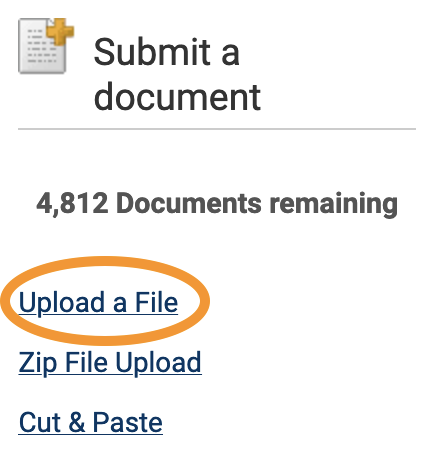
Upload a File allows you to submit a single document from a variety of document types. From the Submit a document menu, click Upload a File, and the Upload a file form opens.
Under Destination Folder, choose the folder to which you wish to upload the file. Its Similarity Report will be added to the same folder.
Complete Author First Name, Author Last Name, and Document Title fields. If Document Title is left blank, the document’s filename will be used.
Click Choose File, and locate the file to upload. Use Add another file to add more files, up to a total of ten.
Click Upload to proceed with with uploading the selected document(s), or click Cancel to cancel the upload.
Zip file upload (v1)
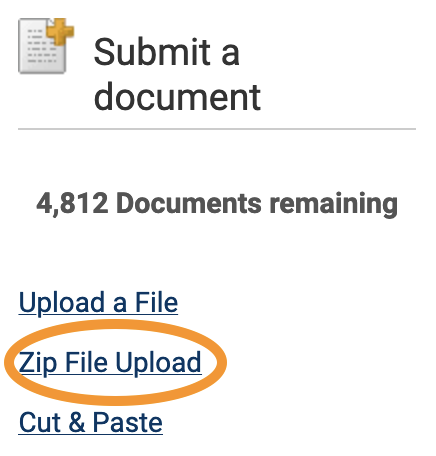
iThenticate allows you to submit multiple documents from a variety of document types in a compressed zip file. The zip file may be up to approximately 100MB in size and contain up to 1,000 individual files. If the zip file exceeds either limit, it will be rejected. Check that your zip file contains only accepted file types, and no duplicate copies of the same file.
Click Zip File Upload from the Submit a document menu. Choose your Destination Folder from the drop-down. The Similarity Report for the file will also be found here.
The information you enter in the Author First Name and Author Last Name fields will be applied to all the documents in the zip file. You can manually change these once the document is uploaded to the folder.
Click Choose file, locate the zip file on your device, and click Upload.
The title of the each document in the zip files will be the default title of each submission.
Cut and paste (v1)
Use the cut and paste submission option to submit information from non-supported file types, or to submit only specific parts or areas of a document.
Only text can be submitted using this method - any graphics, graphs, images, and formatting are lost when pasting into the text submission box.
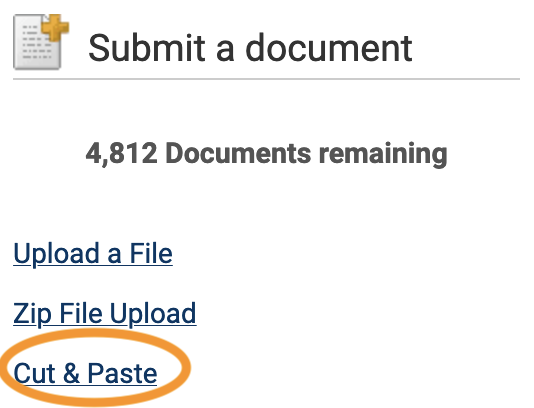
Click Cut & Paste from the Submit a document menu.
Choose your Destination Folder from the drop-down. The Similarity Report for the file will also be found here.
Complete the Author First Name, Author Last Name, and Document Title fields. If no title is given, the default title “Pasted Document” will be used.
Copy your desired text for checking, paste it into the Paste your document in the area below text box, and click Upload.
To view recent uploads, go to the Submit a document menu, click Recent Uploads, and you will see recent uploads listed in reverse chronological order (most recent first). Click the Date & Time header to see the uploads in chronological order (oldest first).
Edit document information (v1)
To edit a document’s information (title and author name), click the edit icon to the right of a document in a folder. You will see the Document Properties page. Edit the fields, and click Update to save your changes.
Page maintainer: Kathleen Luschek Last updated: 2020-May-19